Get interrupted all day and still ship. There's a PDF version too.
You are halfway through a feature. Slack pings: "Checkout is failing for some users, can you look?" Ten minutes later, another thread: "Also, why is the report page slow?"
So you open another terminal tab and start a second Claude Code session. Then a third. By Friday you have twelve tabs across three projects and no idea which one holds what. Some are still running. Some finished hours ago. One is waiting for an answer you never saw.
The tabs are the problem. Each one is a separate chat with no memory of the others, and the only way to know what is inside is to click through them one by one. That works for two. It falls apart at six.
Claude Code has a mode built for exactly this. One terminal tab per project. As many sessions inside it as you need. All in one list that tells you which ones need you. Switch with one keystroke. Leave a session mid-thought and come back tomorrow.
This guide gets you there in about twenty minutes.
The whole idea, in five lines
- One terminal tab per project, opened with one word.
- Every task is a row in a list, not a tab.
- The list tells you which rows need you. Read only those.
- Each session works on its own branch, so nothing collides.
- Close the tab. The sessions carry on.
The rest of this guide is how, and why each piece is there.
1. Open it
From inside any project:
claude agents --cwd .
You get a list instead of a chat. Empty for now. This is the agents view.
Without --cwd . the list shows every session on your machine, across every project. That is the twelve-tab problem again, just in one place. Scoping it to the folder you are in means this tab only ever shows this project's work, and a second project gets its own tab with its own list.
You will open this view every morning in every project you touch. Typing the full command each time gets old by the second day, so make it one word. Add this to ~/.zshrc (or ~/.bashrc):
alias cagents='claude agents --cwd .'
Reload with source ~/.zshrc. From now on: cd into a project, type cagents, keep that tab open all day.
One tab per project. That is the whole setup.
2. Start a session
Type a prompt in the box at the bottom and press Enter. A row appears in the list and Claude starts working.
You are now inside that session. It looks and behaves exactly like the interactive mode you already use: same chat, same permissions, same slash commands. Nothing new to learn here, and nothing you already do has to change.
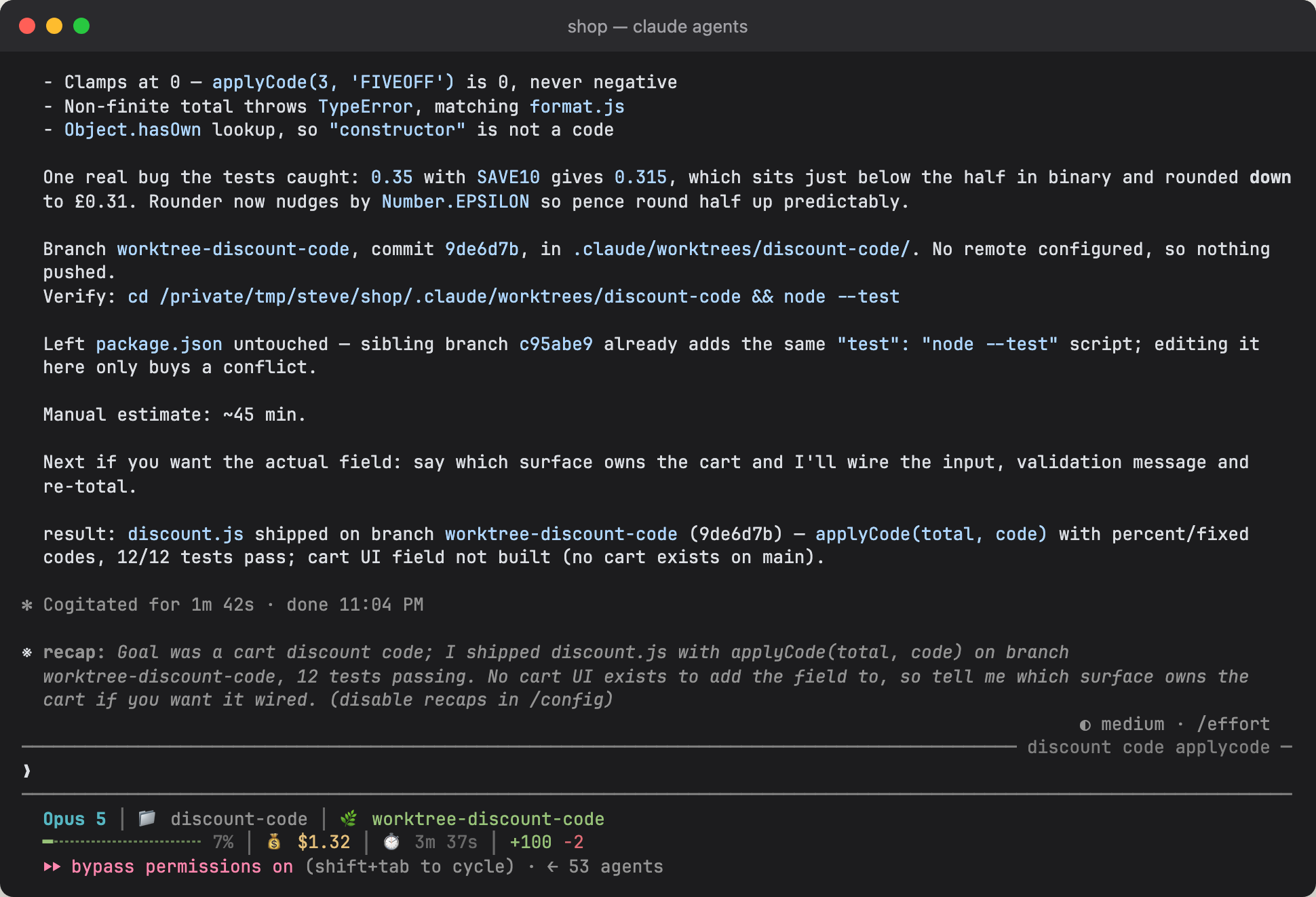
What changes is that you can leave. Two ways to use a session:
- Stay and talk. Discuss, review, steer. Same as always.
- Hand it a task and go. Press
←to go back to the list. The session keeps running without you watching it.
The second one is the point of this mode. A task you would normally sit and watch becomes a row in a list, and your attention is free for the next thing.
3. Add more, switch between them
Slack pings. In the old setup this is where you open a new tab. Here you press ← to return to the list, type the new task, Enter. Second session. The first one is still running, exactly where you left it, and both are in the same list.
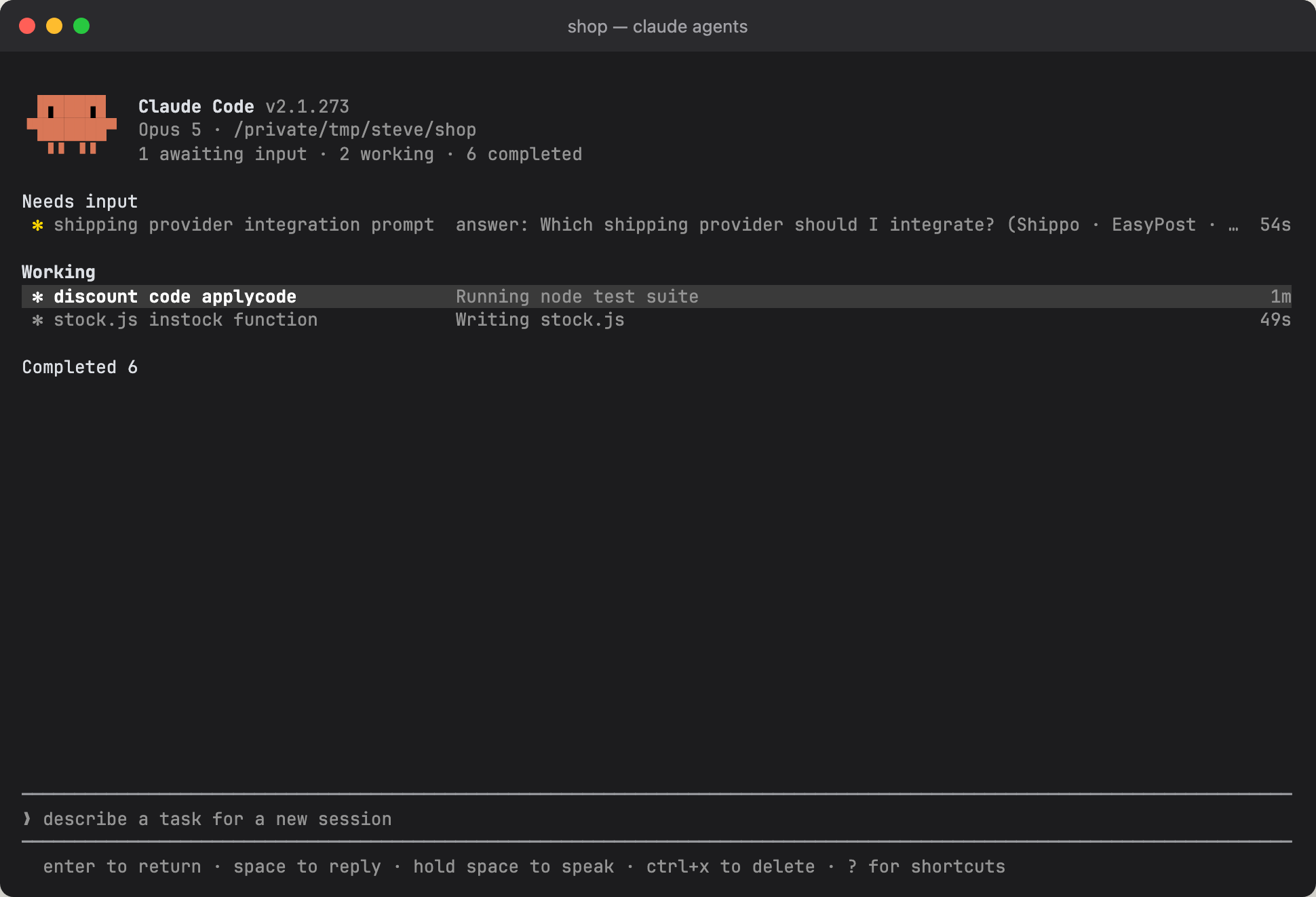
That is the whole difference. Interruptions stop costing you a tab, and they stop costing you the context of what you were doing before, because that context lives in the session, not in your head.
Moving around the list:
| Key | Does |
|---|---|
↑ ↓ | Move between sessions |
Enter | Open the highlighted session |
← | Back to the list, session keeps running |
Space | Reply to a session without opening it |
Ctrl+S | Switch between the grouped list and one flat list |
Ctrl+X twice | Delete a session. It refuses once if the branch has unpushed commits |
? | Every shortcut |
Space is the one to learn early. A session asks a one-line question, you answer it from the list and stay where you are. No opening, no scrolling, no leaving.
4. Read the list
With three sessions you can remember what each one is doing. With eight you cannot, and checking each one by hand is the tab problem all over again. The list is built so you do not have to.
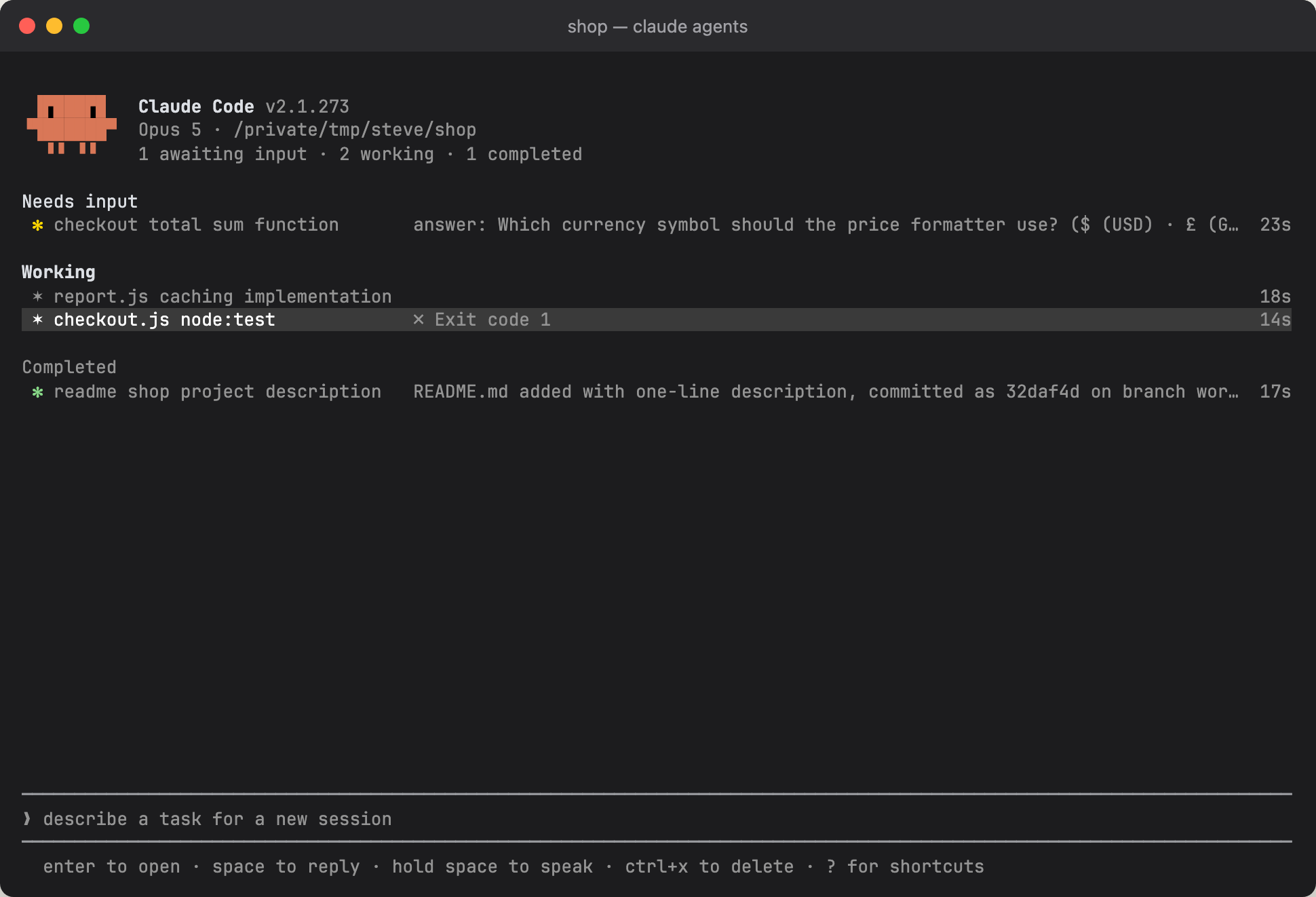
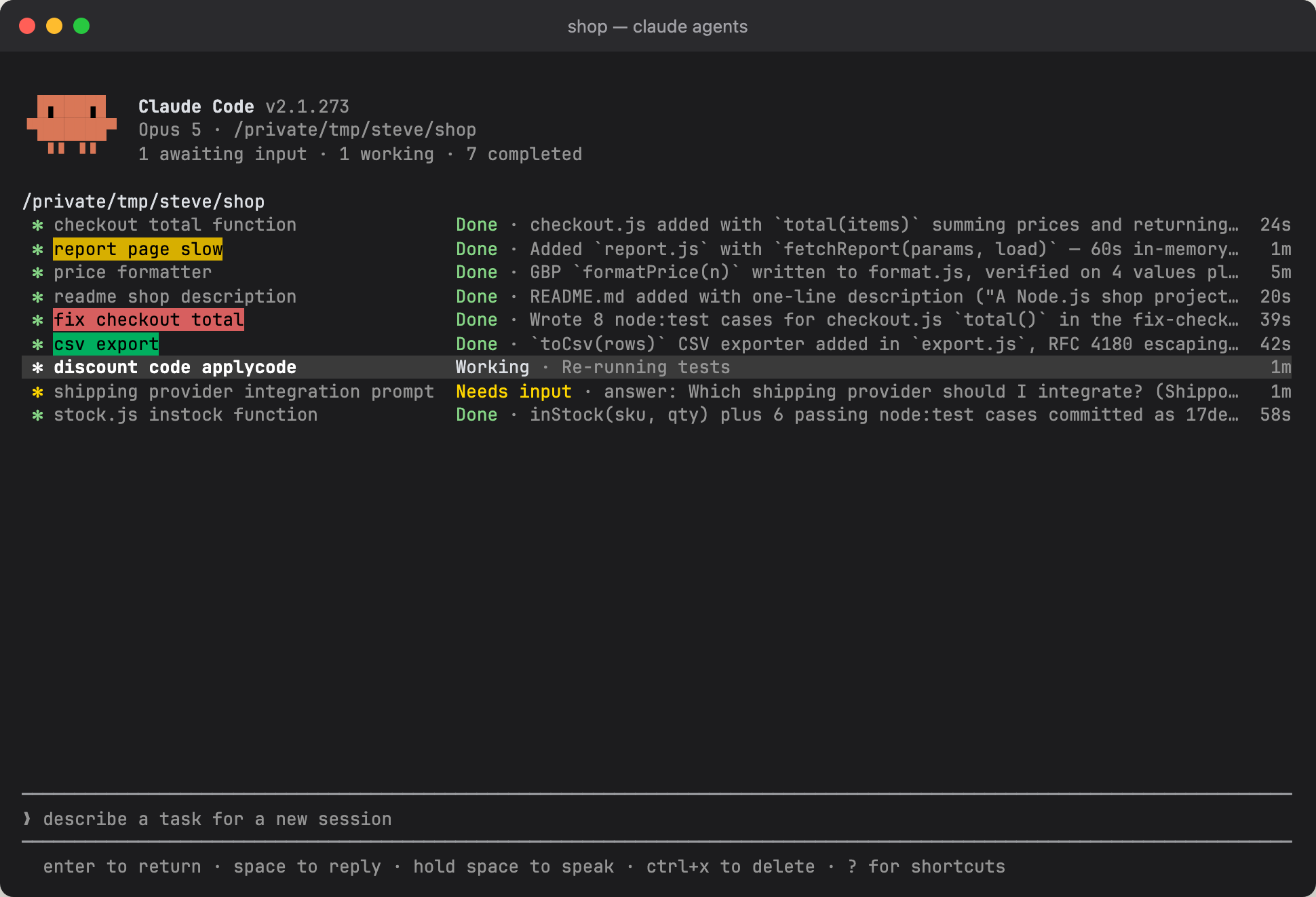
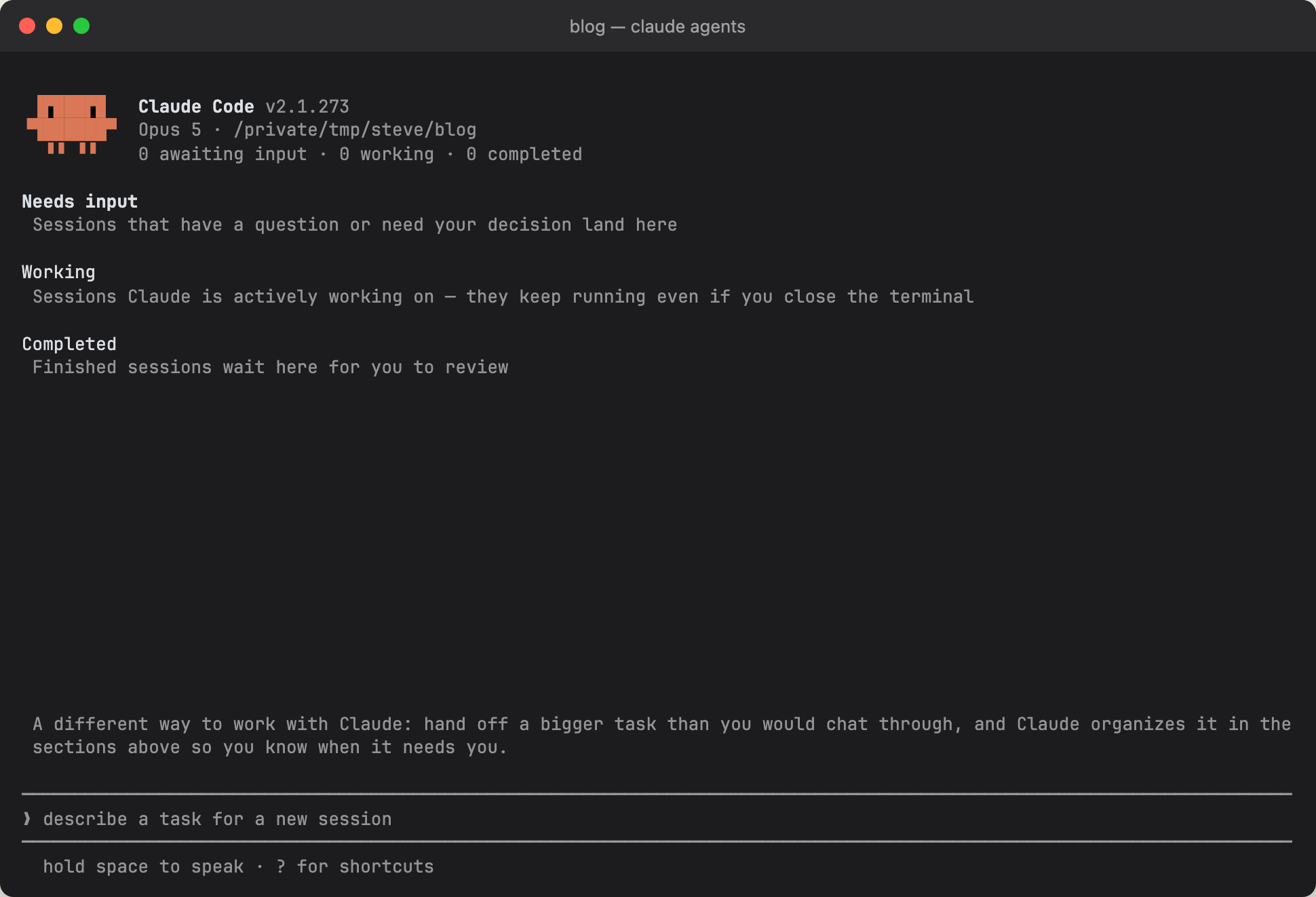
It is grouped: Needs input on top, then Working, then Completed. Each row shows the session name and its last message. When a group grows past a handful of rows it collapses to a count. Move onto the heading and press Enter to open it. The states:
| State | Meaning |
|---|---|
| Working | Running on its own |
| Needs input | Stopped, waiting for you |
| Completed | Finished its last turn |
| Failed | Errored out |
| Idle | Quiet, nothing pending |
Only one of these needs you right now. Needs input is your queue. Working sessions are fine without you. Completed sessions will wait. So when you come back to the tab, read the top group and nothing else. The list tells you which sessions need you. It does not read their work for you.
You will not always be looking at the tab. Terminal emulators such as Ghostty can play a sound when a background tab wants attention, so a session finishing in the shop project reaches you while you are typing in the blog project.
5. Where your changes land
Two sessions editing the same file at the same time would wreck each other's work. So sessions in the agents view do not edit your working folder directly. Each one gets its own git worktree under .claude/worktrees/, on its own branch. You can run six at once and none of them can touch another's files.
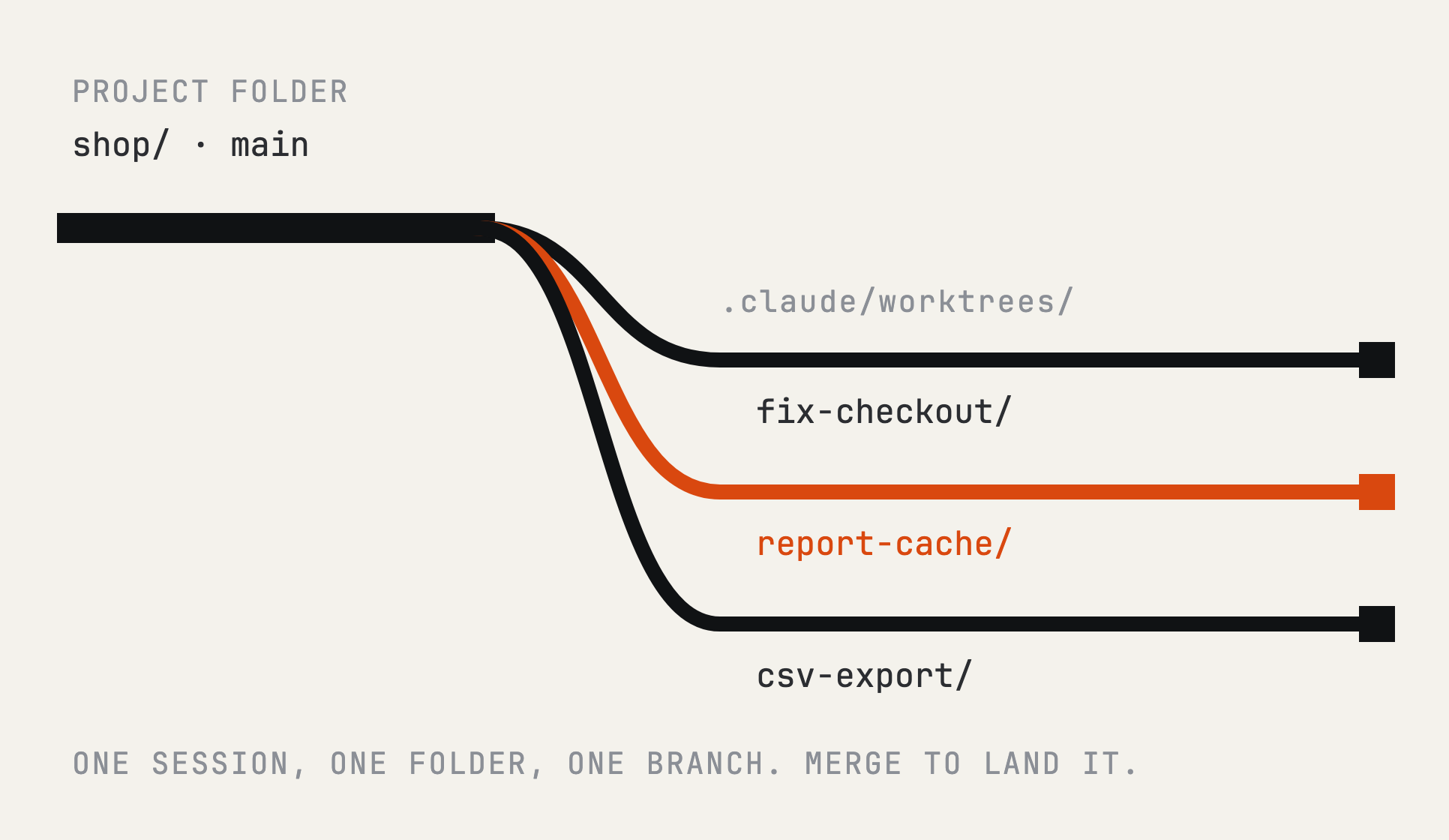
That safety has three consequences you need to know about, because each one will surprise you the first time.
Your local work is not in the session. By default a new worktree branches from the remote default branch (main or develop), not from your checkout. Every session starts clean, so it will not see commits you have not pushed there, and it never sees uncommitted edits: a worktree only carries commits. Push first, or branch from your local HEAD so unpushed commits come along:
// ~/.claude/settings.json
{ "worktree": { "baseRef": "head" } }
Finishing means merging. When a session is done, its work lives on a branch, not in your folder. Nothing lands until you merge it. Open a PR from it, or merge it yourself. The session can do either if you ask.
You can turn it off. If you only ever run one session at a time in a project, worktrees are ceremony you do not need, and you may prefer sessions to edit the folder in place like interactive mode does:
{ "worktree": { "bgIsolation": "none" } }
The moment you run two sessions in the same project, turn it back on. Two sessions in one folder will collide.
6. Close the tab
The reason you kept twelve tabs open was that closing one killed the session inside it. That is not true here.
Sessions belong to Claude Code, not to your terminal. Close the tab, close the terminal app, reopen tomorrow, run cagents: every session is still there in the state you left it. A session mid-task carries on. A session waiting for an answer is still waiting.
The only thing that pauses them is the laptop lid. Wake it up and they carry on.
Because nothing dies when a tab closes, you need one explicit way to stop everything. You will want it when a session is doing something you did not ask for, or when you are done for the day and want nothing burning usage in the background:
claude daemon stop --any
7. Make it yours
Everything above works with the defaults. The list starts getting hard to read at about five rows, and these are the things that keep it readable at ten.
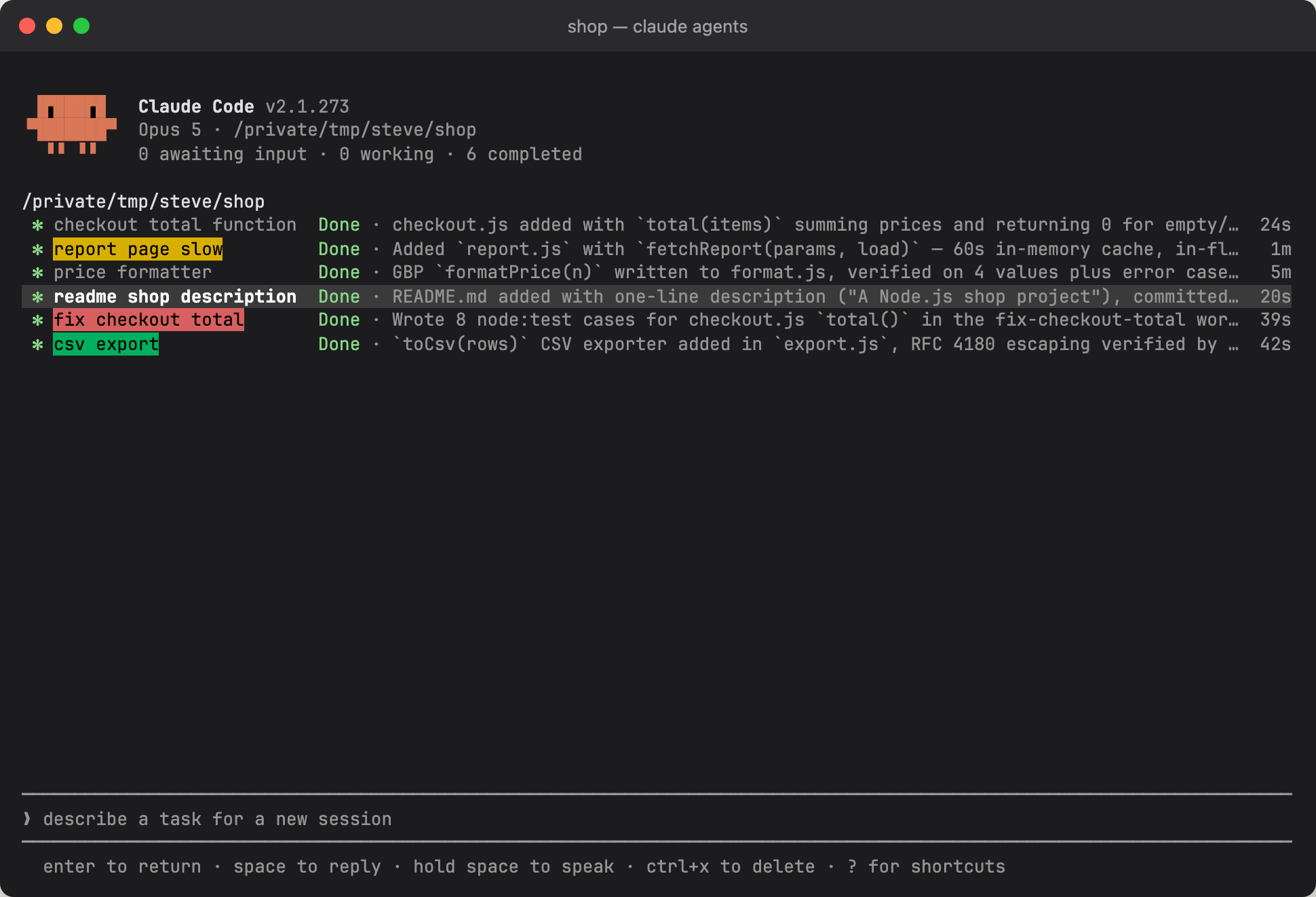
Rename. Claude names each session from your first prompt, so names come out like "checkout total sum function". Fine for one. Unreadable in a list of eight. Rename anything you will come back to:
/rename fix checkout 500s
Or press Ctrl+R in the list.
Colour. A colour is faster to find in a list than a name. /color tints a row:
/color red
You pick what the colour means. One developer uses red for blocked, so a red row means "someone else needs to do something before this moves" and he can skip it without reading it. You might use it for urgency, for client, or for anything else.
Ask for a report. When you come back to a completed session you want to know what changed without reading the whole transcript. End a hand-off prompt with "when done, tell me what changed and where." Switching back then takes seconds, not a scroll.
Job id is not session id. A session started from the shell prints a short 8-character job id. Resuming by id needs the full session id, which you get from the list. If a resume ever says it cannot find a session, this is why.
Cheat sheet
Commands
| Command | Does |
|---|---|
claude agents --cwd . | Open the agents view for the project you are in |
alias cagents='claude agents --cwd .' | Same thing as one word. Put it in ~/.zshrc |
/rename <name> | Inside a session: rename it |
/color <colour> | Inside a session: tint its row in the list |
claude daemon stop --any | Stop every session on this machine |
Settings in ~/.claude/settings.json
| Setting | Values |
|---|---|
worktree.baseRef | "fresh" (default, branch from the remote default branch) or "head" (branch from your local HEAD, unpushed commits included) |
worktree.bgIsolation | "none" to edit the project folder in place, one session at a time |
In the list
| Key | Does |
|---|---|
↑ ↓ | Move between sessions |
Enter | Open the highlighted session |
← | Back to the list. The session keeps running |
Space | Reply to a session without opening it |
Ctrl+R | Rename the highlighted session |
Ctrl+S | Switch between the grouped list and one flat list |
Ctrl+X twice | Delete a session. Refuses once if it has unpushed commits |
? | Every shortcut |
Four mistakes
Running more than you can follow. Every session that finishes hands you something to read, and every time you switch to one you lose your place in the last. It gets out of hand faster than you expect. Six sessions finishing in the same hour means six reviews back to back, and somewhere in there you stop reading the work and start approving it. Start a new session when you have room to check what comes back, not because the list has space.
Burning your usage cap. Six sessions working at once use six sessions' worth of tokens. On the $20 Pro plan you will hit the limit far sooner than in interactive mode, and a limit hit mid-afternoon stops every session, not just one. Run in parallel what actually needs to be parallel. Let the rest queue.
Forgetting a Needs input row. A session that asked a question and got no answer will sit there for days, and the work behind it sits with it. Scan the top group every time you come back to the tab.
Two sessions on one file. Only possible if you turned worktree isolation off. If you did, keep one session per project or turn it back on.
You now have one tab per project and a list that tells you what needs you. You still start every session by hand though. The next guide is about letting a Slack mention start it for you.
Get the PDF
Want it as a PDF? Same guide, plus a cheat sheet. Pay what you like.
Guide 2 is about letting a Slack mention start the session for you, all the way to a pull request. Follow me on Gumroad to get an email when it ships.